
Install Claude Code
Create Claude Code Account
If you don’t already have a Claude account – you’ll need to create one! Go to this link and make a Pro account. You’ll need a credit card 🙂
Install Claude Code
Claude Code is different than just using the Claude AI. It is actually installed on your computer and works with your local development environment. It can read your files including database structures and actively update and write code. How cool. But be careful.
If you have a Mac
-
- Open up a Terminal window. How?
- Press the cmd and spacebar keys together to get search and type in Terminal.
- Click on Terminal and you’ll see this application – though your path will be different.
 Type is this command:
 curl -fsSL https://claude.ai/install.sh | bash
- Open up a Terminal window. How?
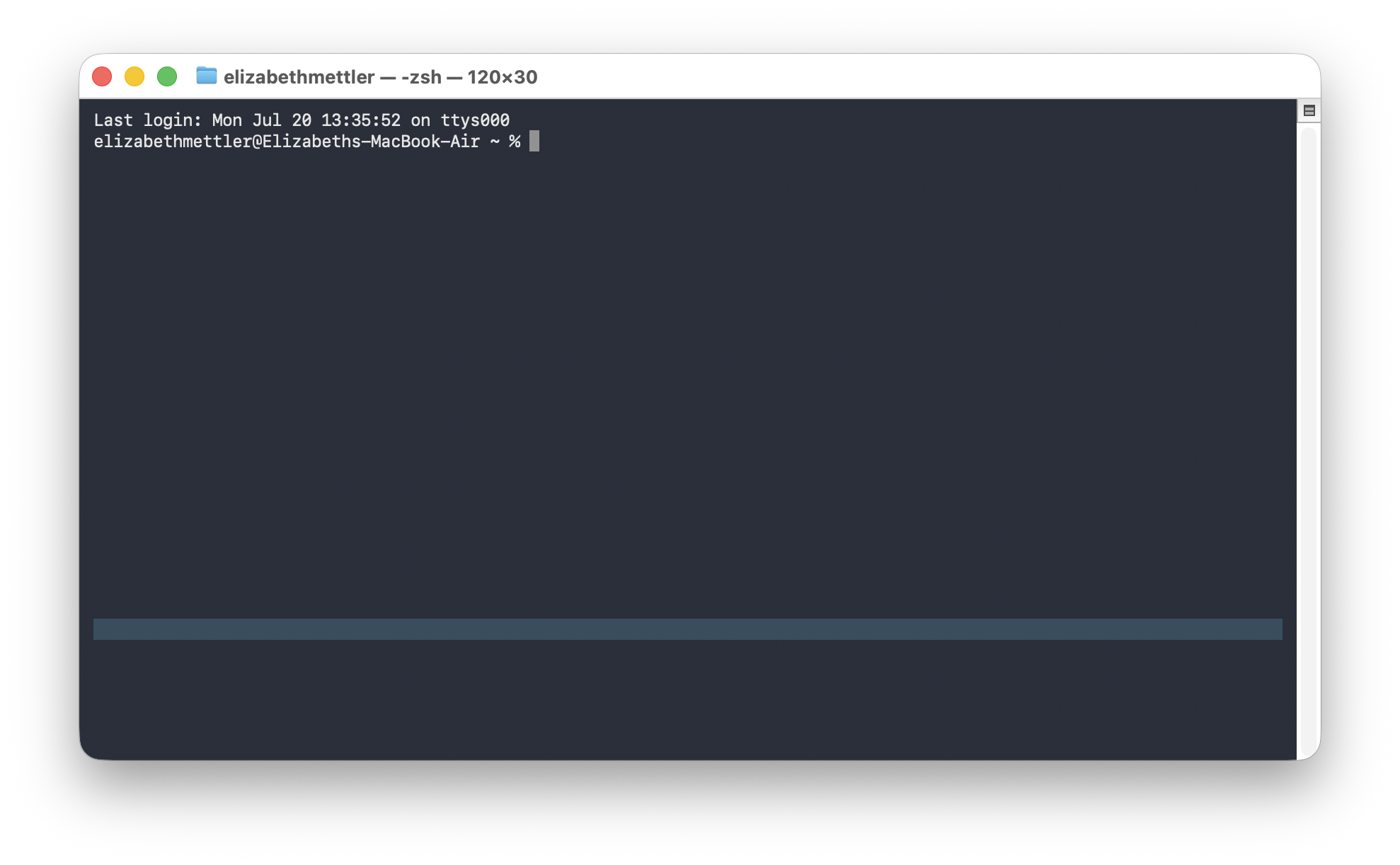 Type is this command:
 -
- Check that it worked by opening a new Terminal Window and running
claude --version.You should see something like this:
- Check that it worked by opening a new Terminal Window and running

If you Have Windows
- Open up a Powershell Window. How?
- Fastest: press
Windows key, typepowershell, hit Enter. - Right-click menu: right-click the Start button → Windows Terminal or Terminal (on Windows 11) — this opens PowerShell by default.
- Run dialog:
Windows key + R, typepowershell, press Enter. - File Explorer shortcut: in any folder, hold Shift and right-click empty space → Open PowerShell window here (opens it already in that folder — handy for navigating straight to a project directory).
- Fastest: press
- Type is this command:
irm https://claude.ai/install.ps1 | iex - Check that it worked by opening a new PowerShell Window and running
claude --version.
